Dino Park is an augmented reality project which will help you to learn some of the functions of Zapworks Designer. You can use your new knowledge to help you with your OCR J836 Cambridge National IT R070 Augmented Reality coursework.
Important note:This tutorial is not intended to show you how to complete coursework.
Project overview
Create an augmented reality prototype to provide users with interactive information about dinosaurs.
Before you start
Prerequisites
- An active Zapworks account
- A smartphone or tablet with a camera and fast internet connection
- Recommended: the ability to print one colour A4 image
Supplied assets
The following assets are provided for you to use. You do not need to create your own assets.
3D assets
- Brachiosaurus-3D.glb
- Park-gates-3D.glb
- Pterodactyl-3D.glb
- T-rex-3D.glb
- Triceratops-3D.glb
2D assets
- Brachiosaurus-2D.png
- Brachiosaurus-Info-2D.png
- Park-gates-2D.png
- Park-gates-Info-2D.png
- Pterodactyl-2D.png
- Pterodactyl-Info-2D.png
- T-rex-2D.png
- T-rex-Info-2D.png
- Triceratops-2D.png
- Triceratops-Info-2D.png
- Dino-Park-Logo-2D.png
- Entry-Instructions-2D.png
Marker images
A marker image is the real-world image or object that an AR app looks for to make the digital content appear.
- Dino-marker-large.pdf — print this in colour and place it vertically
- Dino-marker-small.jpg — this will be used to tell the AR app which marker image to look for
 Important note
If your Zapworks account has a 50MB limit, use no more than three 3D dinosaurs.
If your Zapworks account has a 25MB limit, just use the 2D images.
User Interaction Requirements
Scene 1: Introduction
Assets required:
- Park Gates (3D or 2D)
- Dino Park Logo (2D)
- Entry Instructions (2D)
- Dino-park-small (marker image)
Animations and interactions
When the scene starts:
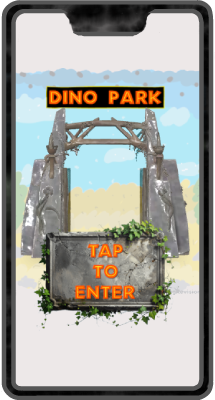
- The Entry Instructions stone tablet and Dino Park logo image is displayed
- The Park Gates object moves to the front, centre of the scene, increasing in scale.
- When the user taps the Entry Instructions, the user jumps to Scene 2.
Scene 2: Dino Gallery
Assets required:
Four different dinosaurs have been supplied. Depending on your Zapworks account, you should use the 2D images or a maximum of three 3D dinosaurs.
- Brachiosaurus (2D or 3D)
- Brachiosaurus Info (2D)
- Pterodactyl (2D or 3D)
- Pterodactyl Info (2D)
- T-rex (2D or 3D)
- T-rex Info (2D)
- Triceratops (2D or 3D)
- Triceratops Info (2D)
Animations and interactions
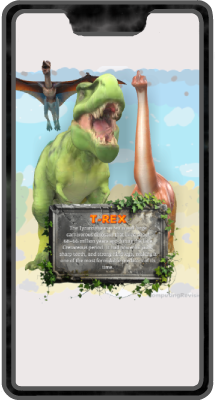
Upon entering the scene, the user is shown up to three dinosaur objects (be mindful of the project size limit). These should be arranged in such a way as to be clearly visible to the user when they enter the scene.
When clicked, a dinosaur should move forward towards the user, and the corresponding information file should be shown. Clicking the information file hides it and moves the dinosaur back to its original position.
This page and its content is not affilated with, or endorsed by, Zappar Ltd